
Yes as shown in the image we are going to see all these types.
First we can see about Animation using ViewFlipper

Here i had added three views in the viewflipper and i had called the animation changes on scrolling using touchevent, the xml section will be like this
viewer.xml
<?xml version="1.0" encoding="utf-8"?>

<ViewFlipper xmlns:android="http://schemas.android.com/apk/res/android"
    android:layout_margin="5dip"
    android:id="@+id/layoutswitcher"
    android:layout_width="fill_parent"
    android:layout_height="500dp">
    <LinearLayout
        android:layout_width="fill_parent"
        android:layout_height="fill_parent">
        <TextView
            android:layout_height="wrap_content"
            android:padding="20dip"
            android:background="@android:color/background_light"
            android:text="Currently you are in Page 1. Scroll right or left to see next page"
            android:layout_width="fill_parent"
            android:layout_weight="1"
            android:textStyle="bold" >
        </TextView>
    </LinearLayout>
    <LinearLayout
        android:layout_width="fill_parent"
        android:layout_height="fill_parent">
        <TextView
            android:layout_height="wrap_content"
            android:padding="20dip"
            android:background="@android:color/darker_gray"
            android:text="Currently you are in Page 2. Scroll right or left to see next page"
            android:layout_width="fill_parent"
            android:layout_weight="1"
            android:textStyle="bold" >
        </TextView>
    </LinearLayout>
    <LinearLayout
        android:layout_width="fill_parent"
        android:layout_height="fill_parent">
        <TextView
            android:layout_height="wrap_content"
            android:padding="20dip"
            android:background="@android:color/white"
            android:text="Currently you are in Page 3. Scroll right or left to see next page"
            android:layout_width="fill_parent"
            android:layout_weight="1"
            android:textStyle="bold" >
        </TextView>
    </LinearLayout>
</ViewFlipper>
and in the java we need to apply the animation on touchevent as
ViewerEffect.java
package com.animmer;

import android.app.Activity;
import android.os.Bundle;
import android.view.MotionEvent;
import android.view.animation.AccelerateInterpolator;
import android.view.animation.Animation;
import android.view.animation.TranslateAnimation;
import android.widget.ViewFlipper;

public class ViewerEffect extends Activity {

    private ViewFlipper vf;
    private float oldTouchValue;

    @Override
    public void onCreate(Bundle savedInstanceState) {
        super.onCreate(savedInstanceState);
        setContentView(R.layout.viewer);

        vf = (ViewFlipper) findViewById(R.id.layoutswitcher);
    }

  //for the previous movement
 public static Animation inFromRightAnimation() {

     Animation inFromRight = new TranslateAnimation(
     Animation.RELATIVE_TO_PARENT,  +1.0f, Animation.RELATIVE_TO_PARENT,  0.0f,
     Animation.RELATIVE_TO_PARENT,  0.0f, Animation.RELATIVE_TO_PARENT,   0.0f
     );
     inFromRight.setDuration(400);
     inFromRight.setInterpolator(new AccelerateInterpolator());
     return inFromRight;
     }
    public static Animation outToLeftAnimation() {
     Animation outtoLeft = new TranslateAnimation(
      Animation.RELATIVE_TO_PARENT,  0.0f, Animation.RELATIVE_TO_PARENT,  -1.0f,
      Animation.RELATIVE_TO_PARENT,  0.0f, Animation.RELATIVE_TO_PARENT,   0.0f
     );
     outtoLeft.setDuration(400);
     outtoLeft.setInterpolator(new AccelerateInterpolator());
     return outtoLeft;
     }
    // for the next movement
    public static Animation inFromLeftAnimation() {
     Animation inFromLeft = new TranslateAnimation(
     Animation.RELATIVE_TO_PARENT,  -1.0f, Animation.RELATIVE_TO_PARENT,  0.0f,
     Animation.RELATIVE_TO_PARENT,  0.0f, Animation.RELATIVE_TO_PARENT,   0.0f
     );
     inFromLeft.setDuration(400);
     inFromLeft.setInterpolator(new AccelerateInterpolator());
     return inFromLeft;
     }
    public static Animation outToRightAnimation() {
     Animation outtoRight = new TranslateAnimation(
      Animation.RELATIVE_TO_PARENT,  0.0f, Animation.RELATIVE_TO_PARENT,  +1.0f,
      Animation.RELATIVE_TO_PARENT,  0.0f, Animation.RELATIVE_TO_PARENT,   0.0f
     );
     outtoRight.setDuration(400);
     outtoRight.setInterpolator(new AccelerateInterpolator());
     return outtoRight;
     }

    @Override
    public boolean onTouchEvent(MotionEvent touchevent) {
        switch (touchevent.getAction())
        {
            case MotionEvent.ACTION_DOWN:
            {
                oldTouchValue = touchevent.getX();
                break;
            }
            case MotionEvent.ACTION_UP:
            {
                float currentX = touchevent.getX();
                if (oldTouchValue < currentX)
                {
                    vf.setInAnimation(inFromLeftAnimation());
                    vf.setOutAnimation(outToRightAnimation());
                    vf.showNext();
                }
                if (oldTouchValue > currentX)
                {
                    vf.setInAnimation(inFromRightAnimation());
                    vf.setOutAnimation(outToLeftAnimation());
                    vf.showPrevious();
                }
            break;
            }
        }
        return false;
    }
}
Likewise the next is animation between activities
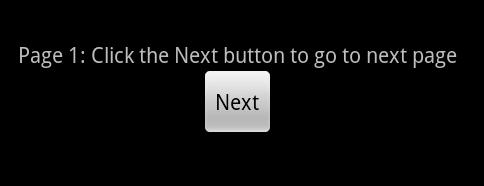
Yes we here we will be giving animation effect between activities
For animation effects we need to put four files in the anim folder, they are slide_in_left, slide_out_left, slide_in_right and slide_out_right.
Java
overridePendingTransition( R.anim.slide_in_left, R.anim.slide_out_left );
The above code is used to move left to right
Java
overridePendingTransition( R.anim.slide_in_right, R.anim.slide_out_right );
The above code is used to move right to left
The final animation technique is to hide and show the views

Here we will be using touch event to assign the animation part, the animation objects will be assigned as shown below
Java
mAnimShow = AnimationUtils.loadAnimation(this, R.anim.slide_in_left);
mAnimHide = AnimationUtils.loadAnimation(this, R.anim.slide_out_right);

mAnimShow.setAnimationListener(new AnimationListener() {

   @Override
   public void onAnimationRepeat(Animation animation) {
    // TODO Auto-generated method stub

   }

   @Override
   public void onAnimationStart(Animation animation) {
    overridePendingTransition( R.anim.slide_in_left, R.anim.slide_out_left );

   }

   @Override
   public void onAnimationEnd(Animation animation) {


   }

  });

mAnimHide.setAnimationListener(new AnimationListener() {

   @Override
   public void onAnimationRepeat(Animation animation) {
    // TODO Auto-generated method stub

   }

   @Override
   public void onAnimationStart(Animation animation) {
    overridePendingTransition( R.anim.slide_in_right, R.anim.slide_out_right );

   }

   @Override
   public void onAnimationEnd(Animation animation) {


   }

  });
The full source code is provided below, you can apply these animation for any other purpose also, the animation technique is same, we need to put this in our logic.
You can download the full source code
Have a good day.

